How to Password Protect SanDisk Extreme Portable SSD
QUICK ANSWER
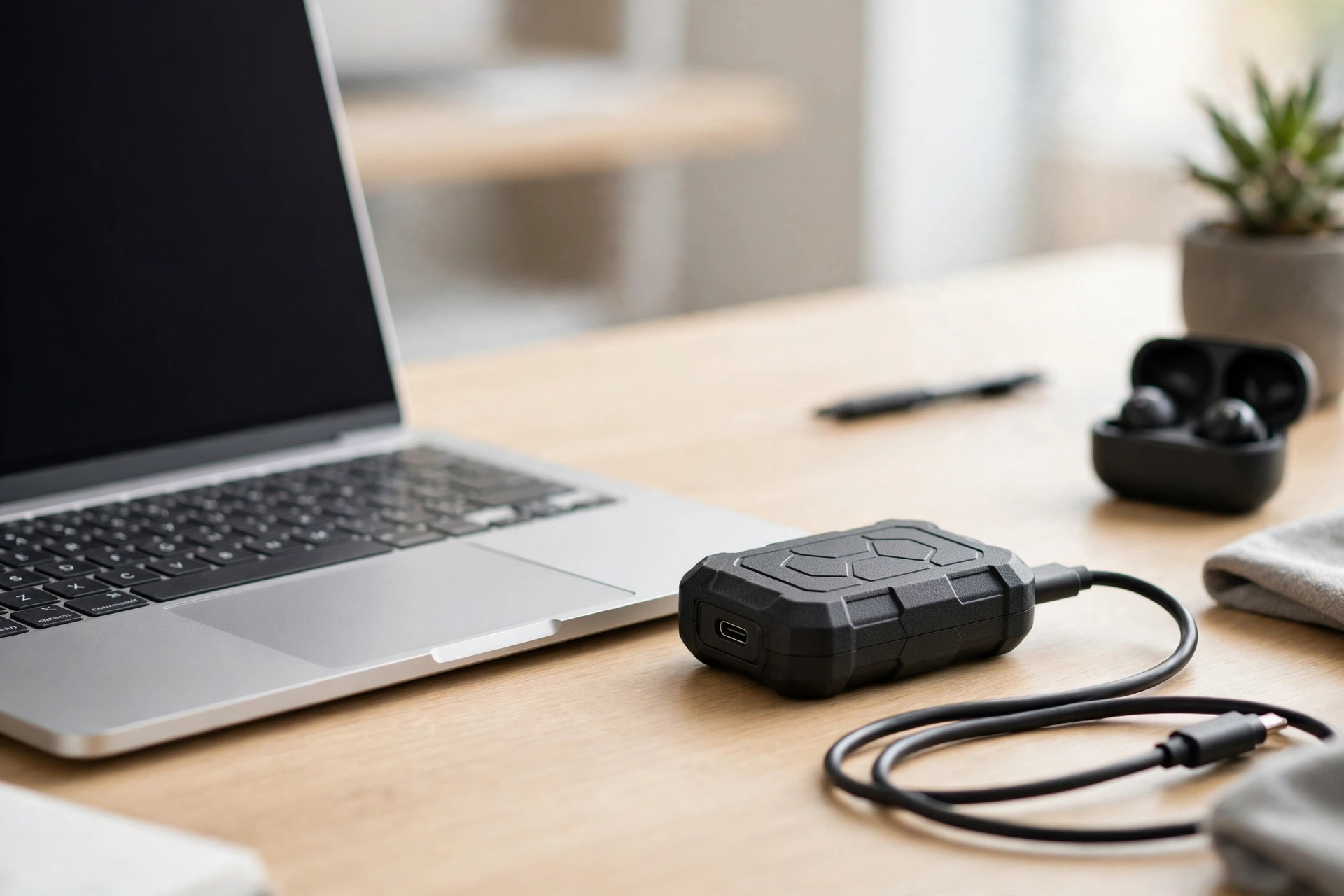
This guide shows how to password protect SanDisk Extreme Portable SSD, model SDSSDE61-1T00-G25, the right way. The correct tool is SanDisk SecureAccess. It creates a private, password-protected vault on the drive. Drag the files you want to protect into that vault. Files inside are encrypted and need your password to open. Files left outside are not protected, so move them in. Do not download SanDisk Security for this model. That software is for newer SanDisk drives, not the SDSSDE61. There is no password reset for the vault, so write your password down before you start.
WHAT YOU NEED
You need the SanDisk Extreme Portable SSD 1TB, Black, model SDSSDE61-1T00-G25, and a computer with a free USB port. Use the USB-C cable that came with it. Your computer needs Windows 8 or Windows 10, or macOS 10.9 or later. On Windows, SecureAccess is already on the drive. On a Mac, download it from sandisk.com/secureaccess. Pick a password you will remember, plus a hint. Know which files you want to protect, because only files inside the vault are locked. Back up those files somewhere else first, in case anything goes wrong during setup.
HOW TO PASSWORD PROTECT SANDISK EXTREME PORTABLE SSD: UNDERSTAND THE VAULT FIRST
Before you click anything, understand what you are setting up. SanDisk SecureAccess does not lock the whole drive. It creates a private vault — a locked folder with its own password. Files you drag into the vault are encrypted and cannot be opened without the password. Files left outside sit on the drive like normal files, and anyone who plugs the drive in can read them. This is the most important fact in this guide, and the one most online guides get wrong.
Some guides say the whole drive is password-protected after setup. It is not. Others say to download SanDisk Security. That is the wrong app for this model — it is for newer SanDisk drives, such as the SDSSDE70. Your drive, the SDSSDE61, uses SecureAccess. Mix the two apps and your files will not be protected the way you think. Remember one sentence: this model uses SecureAccess, and SecureAccess protects a vault, not the whole drive.
HOW TO PASSWORD PROTECT SANDISK EXTREME PORTABLE SSD: SET UP THE VAULT ON WINDOWS
Plug the drive into your Windows computer. Open File Explorer and open the drive. You will find the SecureAccess software there. Double-click the file named SanDiskSecureAccessV3_win.exe to launch it. The software opens and asks you to set up your private vault. Enter a personal password for the vault. The password must be at least 6 characters long, and it must include both letters and numbers. Enter a hint that will help you remember the password. Then click OK.
Your vault is now ready. It starts out empty. Drag the files you want to protect into the vault window, or copy and paste them there. The files are encrypted as they go in. When you are done, close the software or lock the vault. To open them again, plug the drive in, open SecureAccess, and type your password. Only SecureAccess can open the files inside the vault. Windows Explorer can see the vault folder, but it cannot read what is inside it.
HOW TO PASSWORD PROTECT SANDISK EXTREME PORTABLE SSD: SET UP THE VAULT ON A MAC
On a Mac, the steps are the same, but you must download the software first. SanDisk says a software download is required for Mac. Go to sandisk.com/secureaccess and download the Mac version of SanDisk SecureAccess. Install it, then plug the drive in. Open SecureAccess from your Applications folder. Create your vault with a password of at least 6 characters, with both letters and numbers, and add a hint. Click OK. Then drag your files into the vault.
Do not try to run the Windows file on a Mac. It ends in _win.exe and will not run on macOS. If a computer asks for a password but has no SecureAccess installed, install it first. No other program can open the vault.
HOW TO PASSWORD PROTECT SANDISK EXTREME PORTABLE SSD: MOVE YOUR FILES INTO THE VAULT
After the vault exists, move your files into it. Open the vault and drag in the photos, documents, and videos you want to protect. Do not just copy a shortcut. Make sure the real files are inside the vault. Then check they are there. Close the vault, open it again with your password, and look inside. If the files are there, they are protected. If you left some files on the drive, go back and move them too. A file outside the vault is not protected, even if the vault exists on the same drive.
Do not delete your only backup until you have tested the vault. Open it, check a file, close it, and open it again. If that works, your setup is good. Keep a backup somewhere else, because the vault is not a backup. If the drive itself fails, the vault goes with it.
WHAT HAPPENS IF YOU FORGET THE PASSWORD
There is no password reset for the vault. Some guides claim there is a reset option. There is not. If you forget the vault password, you cannot open the files inside it. The SecureAccess help section points to password recovery options, but the manual for this drive family is clear that data may be lost if recovery is not possible. In practice, the only way back in is to delete the vault and start over, which destroys the files inside it. That is why setup asks for a hint. Pick a hint that actually helps you, and write the password down on paper and keep it somewhere safe.
Do not set a vault password on the only copy of your files. Keep a backup outside the vault. If you forget the password and have a backup, you lose nothing but time. If you forget it and have no backup, the files are gone. This is how the encryption works, and no one at SanDisk can open the vault for you.
TROUBLESHOOTING: HOW TO PASSWORD PROTECT SANDISK EXTREME PORTABLE SSD WHEN IT DOES NOT WORK
If the SecureAccess file is not on the drive, download it from SanDisk's website. On a Mac, use sandisk.com/secureaccess. If the software opens but your password is rejected, check Caps Lock and type the password slowly. Passwords are case-sensitive, and a single wrong letter locks you out. Check the hint you set. If you still cannot get in, do not keep guessing. There is no reset.
If you downloaded SanDisk Security and it does not work with this drive, that is expected. SanDisk Security is for newer SanDisk models, not the SDSSDE61. Uninstall it and use SecureAccess instead. If the vault opens but your files are not inside it, you dragged them to the wrong place. Move them into the vault window, not just onto the drive. If the drive is not recognised at all, try a different USB port and cable. If SecureAccess will not start, reinstall it from SanDisk's website. The vault folder stays on the drive, so your files are still there.
WHAT NOT TO DO
Do not download SanDisk Security for this model. It is the wrong app for the SDSSDE61, and it is the mistake most guides make. Do not believe a guide that tells you the whole drive is locked after setup. Only the files inside the SecureAccess vault are protected. Do not leave files outside the vault and think they are safe. Do not set a vault password without writing it down. There is no reset. Do not buy the wrong model by mistake. This guide is for the SanDisk Extreme Portable SSD 1TB Black, model SDSSDE61-1T00-G25, ASIN B08GTYFC37. The Monterey version is SDSSDE61-1T00-G25M and the Sky Blue version is SDSSDE61-1T00-G25B, with different model numbers. Check the model number before you buy.
ABOUT THIS MODEL
The SanDisk Extreme Portable SSD 1TB, model SDSSDE61-1T00-G25, is a pocket-sized USB-C drive with read speeds up to 1,050 MB/s over USB 3.2 Gen 2. It is rated IP65 for water and dust resistance and is built to survive drops of up to 3 meters. SanDisk lists 256-bit AES encryption for password protection on its product page for this model, supported on Windows 8, Windows 10, and macOS 10.9 and later. Password protection does not work with USB Type-C smartphones, including Android devices. The drive comes with a 5-year limited warranty. You may see two different encryption numbers online: the product page lists 256-bit AES encryption, while the SecureAccess guide describes the vault software itself. What matters is the vault: only the files you drag into it are encrypted and password-protected.
Price: Not verified on Amazon live on 2026-11-17. Check the live price on Amazon before you buy.
FREQUENTLY ASKED QUESTIONS
How do I password protect SanDisk Extreme Portable SSD?
Use SanDisk SecureAccess. Open it from the drive on Windows, or download it from sandisk.com/secureaccess on a Mac. Create a vault with a password of at least 6 characters, with letters and numbers, then drag your files into the vault.
Which software password protects the SanDisk Extreme Portable SSD SDSSDE61?
SanDisk SecureAccess. Do not use SanDisk Security for this model. SanDisk Security is for newer SanDisk drives, such as the SDSSDE70.
Does password protecting a SanDisk Extreme SSD lock the whole drive?
No. SecureAccess protects only the files inside the vault. Files left outside the vault are not password-protected. Move every file you want to protect into the vault.
What happens if I forget my SanDisk SecureAccess vault password?
There is no password reset. If you forget it, the files inside the vault cannot be opened. The only way back in is to delete the vault and start over, which destroys those files. Keep a backup and write the password down.
What are the password rules for SanDisk SecureAccess?
The password must be at least 6 characters long and include both letters and numbers. You also enter a hint to help you remember it.
Which SanDisk Extreme model is this guide for?
This guide is for the SanDisk Extreme Portable SSD 1TB Black, model SDSSDE61-1T00-G25, ASIN B08GTYFC37. Check the model number before you buy, because the Monterey and Sky Blue versions have different model numbers.
FINAL VERDICT
Learning how to password protect SanDisk Extreme Portable SSD comes down to one correction: use SanDisk SecureAccess, not SanDisk Security, and protect a vault, not the whole drive. Open SecureAccess, create a vault with a strong password, drag your files into it, and test it twice. Write the password down, because there is no reset. The SDSSDE61 is a fast, tough drive, and the vault keeps private files private, as long as you know its limit: files outside the vault are not protected. Just check the live price on Amazon first. If you like simple gear that earns its space, see How to Set Up TP-Link Deco X55 Mesh WiFi with Existing Router — https://anaturalday.net/post/how-to-set-up-tp-link-deco-x55-mesh-wifi-with-existing-router — for the same plain approach with home Wi-Fi.
SOURCES
- SanDisk Extreme Portable SSD (Recertified) product page, SanDisk — https://www.sandisk.com/en-gb/products/recertified/ssd/external-ssd/extreme-usb-3-2-ssd-recertified.sku=A196-SDSSDE61-1T00 — accessed 2026-11-17.
- SanDisk Extreme Portable SSD User Guide (SecureAccess) — https://manuals.plus/m/6067ca8d1c59e087ca480c204d09fab1138e21626e9647ee1ff97af7de8b8dc7 — accessed 2026-11-17.
- SanDisk Extreme Portable SSD User Manual (SDSSDE61 family) — https://manuals.plus/asin/B08RX4QKXS — accessed 2026-11-17.
- SanDisk Extreme PRO Portable SSD review, Dong Knows Tech — https://dongknows.com/portable-ssd-sandisk-extreme-pro-review/ — accessed 2026-11-17.
- Amazon product page — https://www.amazon.com/dp/B08GTYFC37?tag=theinfojourna-20 — checked 2026-11-17. Price: Not Found / Unverified. Rating: Not Found / Unverified.

Written by
MD DOLAR HOSEN
Technology expert and the founder and author of A Natural Day. He tests and reviews everyday tech, gadgets, and home essentials, and writes practical buying gui…


Comments (0)
Join the discussion — sign in to leave a comment.
Sign in to commentNo comments yet. Be the first to share your thoughts.