How to Install Govee LED Strip Lights
QUICK ANSWER
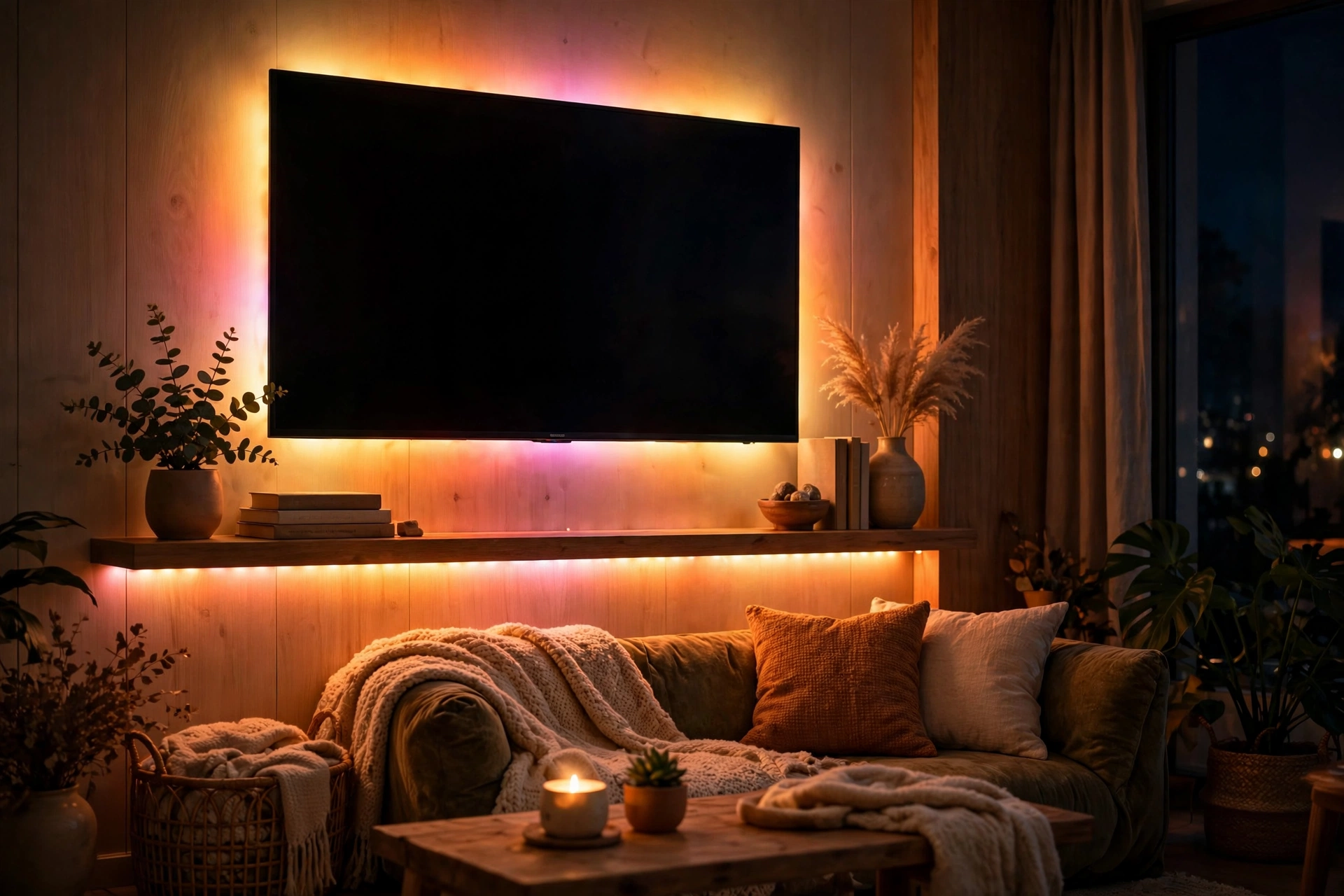
This guide shows how to install Govee LED strip lights, model H6126. Unroll the two 16.4 ft strips and plug them in to check they light up. Wipe a clean, dry surface, stick the strips on, and press firmly along the whole strip. Use clips around corners. Stick the control box in place, plug in the 12V adapter, and turn the lights on. Then download the Govee Home app, turn on Bluetooth, tap the plus sign, and pick H6126. One warning first: do not cut the H6126 strips. The manual forbids cutting, and it will damage them.
WHAT YOU NEED
You need the Govee H6126 strips and a power outlet nearby. The box has two LED strips, one control box, one 12V adapter, and the user manual. Each strip is 5 m (16.4 ft), so the two together give you 32.8 ft. You also need a phone or tablet with the Govee Home app (iOS 9.3 or above, or Android 4.4 or above) and a clean cloth. The strips are not water resistant, so this is an indoor install. Keep them away from heat, and do not let children install them alone. Unroll the strips fully before you plug them in, and never connect them to power while they are still wound on a reel.
HOW TO INSTALL GOVEE LED STRIP LIGHTS: PLAN WHERE THEY GO
Decide where the strips will go before you peel any tape. The H6126 works well behind a TV, along a desk, under a shelf, or around the top of a bedroom wall. Pick a smooth, flat surface. The tape sticks best to clean paint, smooth wood, glass, and metal, and poorly to rough walls, brick, dusty shelves, or textured wallpaper. Measure the run first. You have two strips of 16.4 ft each. If your run is shorter than one strip, do not cut the extra length off. Let it hang loose behind furniture.
Check the power outlet. The control box and the 12V adapter need to reach it, and the strips need to reach the control box. The control box has the microphone hole for music mode, so keep it near your speakers or TV. Do not install the strips near a heater or a stove, or where curtains will cover them.
HOW TO INSTALL GOVEE LED STRIP LIGHTS: TEST THEM BEFORE YOU STICK THEM
Test the strips before you stick them to the wall. Unroll both strips fully and lay them on the floor. Connect the strips to the control box, the control box to the 12V adapter, and the adapter into the wall. Turn the lights on with the control box button. Both strips should light up. Press the color button and check that the colors change. If one strip stays dark or some beads do not light up, pull out every connection and push it back in firmly, then try again. If a strip still does not light up, contact Govee support for a return. Do not power the strips while they are still rolled up.
HOW TO INSTALL GOVEE LED STRIP LIGHTS: STICK THE STRIPS ON
Once the test passes, stick the strips up. Wipe the surface with a clean, dry cloth first. Peel the protective film off the tape on the back of the first strip. Stick the strip on and press over it firmly along its whole length. Do not just press the ends. Go slowly around corners, and do not fold the strip sharply over the LED parts. Use clips around corners, and add more clips and tape if a section feels loose.
Then do the same with the second strip. Peel the protective film off the control box and stick it in place, where you can reach the button and near the sound source for music mode. Press it down firmly too. Then plug in the adapter, power the strips on, and check both light up and the colors match. If a section sags or peels, press it down again and add a clip.
HOW TO INSTALL GOVEE LED STRIP LIGHTS: PAIR THE GOVEE HOME APP
The strips work from the control box alone, but the app gives you far more colors and scenes. Download the Govee Home app from the App Store or Google Play. Turn on Bluetooth on your phone. Open the app and tap the plus sign in the top right corner. Search for H6126 in the device list and tap it. Follow the on-screen instructions to finish pairing, and do not skip the Bluetooth step. If you skip it, the app will not find the strips.
Keep your phone within 1 m (3.28 ft) of the strips while you pair them. If the app cannot find the strips, check that Bluetooth is on, turn the strips off and on again, and try once more. If it still fails, try a different phone. The manual says a mismatch between the phone system and the app can block pairing. Once paired, you can pick colors, brightness, scenes, and music mode from the app. The H6126 connects over Bluetooth, not Wi-Fi, so your phone must stay near the strips.
HOW TO INSTALL GOVEE LED STRIP LIGHTS: USE THE CONTROL BOX AND MUSIC MODE
You can run the strips without the app, using the control box. It has one button with three jobs. Press it once to turn the lights on or off. Press it again to cycle through 9 colors. Press it to enter music mode. Press and hold it to cycle through 6 brightness levels.
Music mode makes the lights change with sound. The control box has a small hole that picks up sound, so keep it close to the music source and keep that hole clean. If the lights do not sync to the beat, move the control box closer to the speaker. In the app you get more music options and more colors, including RGBIC segmented colors that let different parts of the strip show different colors at once.
TROUBLESHOOTING: HOW TO INSTALL GOVEE LED STRIP LIGHTS WHEN SOMETHING GOES WRONG
If the tape will not hold, the surface is the problem. Clean it again, let it dry, press firmly along its whole length, and add more clips and tape around corners. If the control box does not work, unplug the adapter and plug it back in firmly. Use only the provided 12V adapter.
If Bluetooth will not connect, turn on Bluetooth and do not skip the Bluetooth step in the app. Power the strips and your phone Bluetooth off and on again. Keep the phone within 1 m of the strips while you pair, with nothing between them. If it still fails, try another phone. If the strips do not work at all, pull out every connection and push it back in firmly, then tap the On/Off button. If the colors do not match, or some beads do not light up, contact Govee support for a return. Do not try to fix dead beads yourself.
WHAT NOT TO DO
Do not cut the H6126 strips. The manual says clearly: do not open or cut the rope light. Some other Govee models can be cut, but this one cannot. Do not connect the strips to power while they are wound on a reel. Unroll them first. Do not use a different power adapter. Use only the 12V adapter in the box. Do not install the strips near heat sources, outdoors, or in a bathroom. They are not water resistant. This guide is for the Govee H6126, ASIN B08149RHYZ, with 2 x 16.4 ft strips, Bluetooth control, and a 12V adapter. Check the model number and the ASIN before you buy.
ABOUT THIS MODEL
The Govee H6126 is a 32.8 ft RGBIC LED strip light set with two 5 m (16.4 ft) strips, one control box, and one 12V adapter. RGBIC means different sections can show different colors at the same time. The strips are not water resistant. They are controlled by the Govee Home app over Bluetooth, or by the button on the control box, which cycles through 9 colors, enters music mode, and cycles through 6 brightness levels when you press and hold it. The strips use 2.4 GHz Bluetooth Low Energy. It comes with a 12-month limited warranty and lifetime technical support from Govee, at [email protected].
Price: Not verified on Amazon live on 2026-11-17. Check the live price on Amazon before you buy.
FREQUENTLY ASKED QUESTIONS
How do I install Govee LED strip lights?
Unroll the strips and test them on the floor first. Wipe the surface clean and dry, peel the tape film, stick the strips on, and press firmly. Add clips around corners. Stick the control box in place, plug in the 12V adapter, and pair the Govee Home app.
Can I cut Govee H6126 LED strip lights?
No. The H6126 manual says not to cut the strips. Some other Govee models can be cut, but this one cannot. If your run is shorter, let the extra length sit loose behind furniture.
How do I connect Govee H6126 to the app?
Download the Govee Home app, turn on Bluetooth, open the app, tap the plus sign, and select H6126. Keep your phone within 1 m (3.28 ft) of the strips while you pair them.
Why is my Govee strip tape not sticking?
The surface is probably dusty or damp. Clean it, let it dry, press firmly along its whole length, and add more clips and tape around corners.
Why will my Govee H6126 not connect to Bluetooth?
Check Bluetooth is on and do not skip the Bluetooth step in the app. Power the strips off and on again, keep the phone within 1 m of the strips, and try another phone if it still fails.
How do I use music mode on Govee H6126?
Press the control box button to enter music mode, and keep the control box close to the sound source. Clean the sound picking hole if the lights do not sync.
FINAL VERDICT
Learning how to install Govee LED strip lights is easy once you test first and stick second. Unroll the strips, plug them in, and check that both light up. Wipe the surface clean and dry, stick the strips on, and press firmly. Pair the Govee Home app over Bluetooth and pick your colors. The one rule that matters most is the one people break most often: do not cut the H6126. The extra length can sit out of sight. Check the live price on Amazon first, and make sure the listing says model H6126. If you like simple gear that earns its space, see How to Clean Dreo Nomad One Tower Fan — https://anaturalday.net/post/how-to-clean-dreo-nomad-one-tower-fan — for the same plain approach with a home fan.
SOURCES
- Govee H6126 32.8ft LED Strip Lights User Manual — https://manuals.plus/govee/h6126-32-8ft-led-strip-lights-manual — accessed 2026-11-17.
- Govee H6126 RGBIC LED Strip Light User Manual — https://manuals.plus/govee/h6126-rgbic-led-strip-light-manual — accessed 2026-11-17.
- Amazon product page — https://www.amazon.com/dp/B08149RHYZ?tag=theinfojourna-20 — checked 2026-11-17. Price: Not Found / Unverified. Rating: Not Found / Unverified.

Written by
MD DOLAR HOSEN
Technology expert and the founder and author of A Natural Day. He tests and reviews everyday tech, gadgets, and home essentials, and writes practical buying gui…
Comments (0)
Join the discussion — sign in to leave a comment.
Sign in to commentNo comments yet. Be the first to share your thoughts.