How to Set Up Logitech C920 Webcam on Windows
QUICK ANSWER
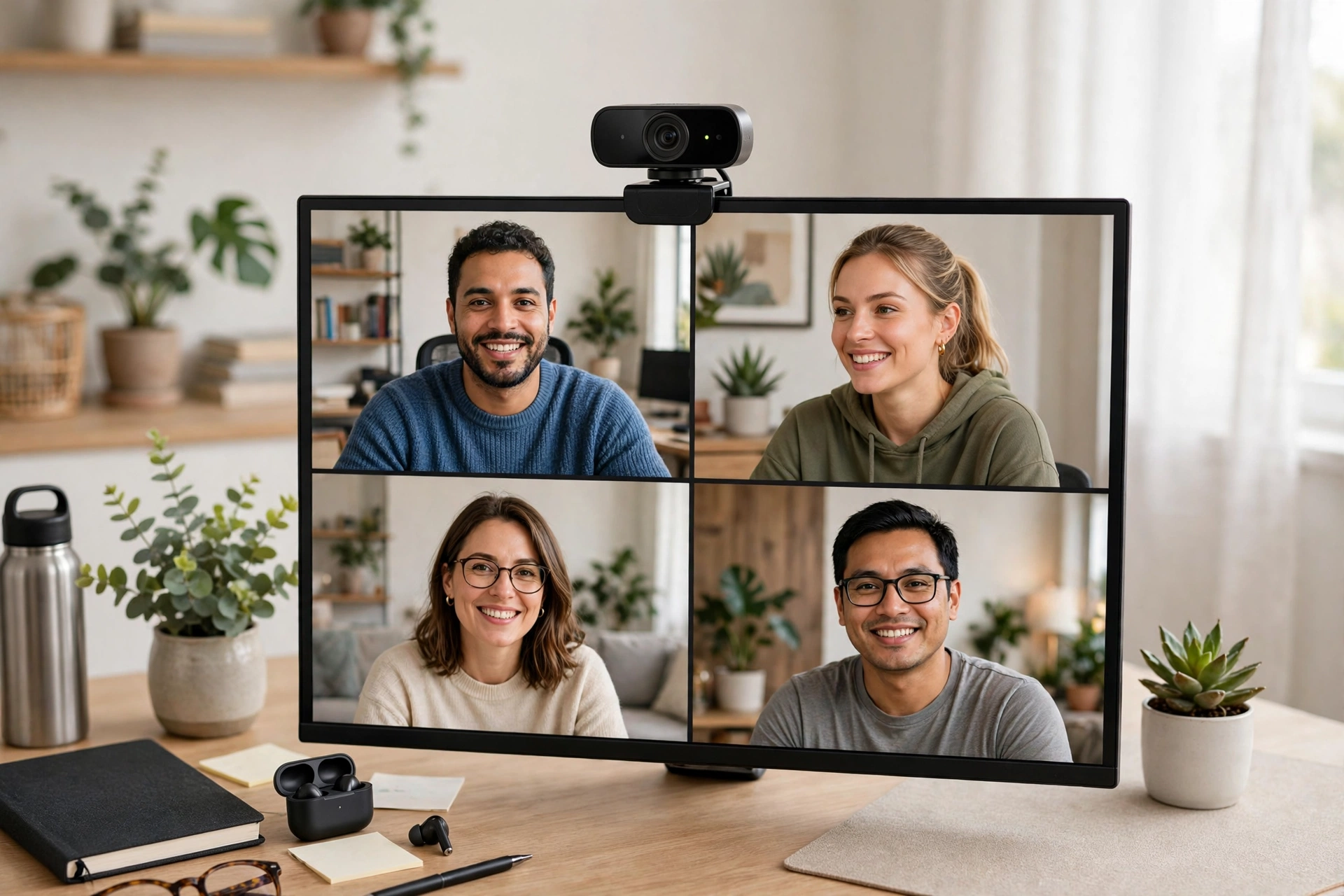
This guide shows how to set up Logitech C920 webcam on Windows in a few minutes. Mount it on your monitor or desk, plug the USB cable into your computer, and let Windows install the drivers. Open the Windows Camera app to check your picture. Then pick "Logitech C920" as your camera and microphone in Zoom, Teams, or Google Meet.
WHAT YOU NEED
You need the Logitech HD Pro Webcam C920, model 960-001055, and a Windows computer with a free USB port. It comes with a 1.5 m (5 ft) USB cable attached, so you do not need a separate cable. Your computer needs Windows 7 or later, so setup is the same on Windows 10 and Windows 11. You do not need to install software first. Windows installs the drivers automatically. For extra picture controls, you can download the free Logitech G HUB software from Logitech support, but it is optional. Face a window or a lamp for good light.
HOW TO SET UP LOGITECH C920 WEBCAM ON WINDOWS: MOUNT IT FIRST
The C920 has a flexible clip that grips the top edge of a monitor or laptop screen. Open the clip, rest the front lip on the top edge, and let the arm press against the back. Set it level, at eye level, pointing straight at your face.
To use it on your desk, fold the clip all the way closed. The folded clip forms a flat base, so the webcam stands on a stable surface. The bottom of the clip also has a standard tripod thread, so you can mount the C920 on a tripod if you own one. The tripod is not included. Mount it before you plug the cable in.
HOW TO SET UP LOGITECH C920 WEBCAM ON WINDOWS: PLUG IT IN AND LET WINDOWS FIND IT
Connect the USB cable to a free USB port on your computer. The C920 uses USB 2.0, and it works in a USB 3.0 port too. Use a port on the back of a desktop if you can, because those ports are more stable. Windows should detect the webcam and install the drivers automatically. This may take a few moments.
If nothing happens after a minute, try a different USB port. A loose or weak port is a common cause of a webcam that never appears. Do not use a cheap unpowered USB hub for the first setup. Plug the webcam straight into the computer. You do not need a Logitech account or any download, because the webcam is plug-and-play.
HOW TO SET UP LOGITECH C920 WEBCAM ON WINDOWS: TEST IT IN THE CAMERA APP
Before you join a call, test the webcam in the Windows Camera app. Click Start, type "Camera", and open the app. It should show your picture right away. If it shows a different camera, such as your laptop's built-in webcam, click the switch-camera button or pick "Logitech C920" in the app settings.
This test tells you whether the problem is the webcam or the calling app. If the Camera app shows your picture, the webcam is fine, and any later problem is in Zoom or Teams settings. If it shows a black screen or an error, fix that first. The most common cause is another app already using the webcam. Close Zoom, Teams, Skype, and any browser tab that might use the camera, then try again.
HOW TO SET UP LOGITECH C920 WEBCAM ON WINDOWS: PICK IT IN ZOOM, TEAMS AND MEET
Video apps do not always pick the right camera on their own. If your laptop has a built-in webcam, Zoom or Teams may keep using that one instead of the C920. Tell the app to use the C920 before your call. In Zoom, go to Settings, then Video, and pick "Logitech C920". Then go to Audio and pick it as the microphone. In Teams, click the three dots, open Settings, then Devices, and set the camera and microphone to "Logitech C920". In Google Meet, click the three dots, open Settings, then Video, and pick "Logitech C920". In Skype, go to Settings, then Audio and Video, and pick the C920 for both.
If it ever switches back to the built-in camera, check the settings again. This fixes most "my friends cannot see me" problems.
HOW TO SET UP LOGITECH C920 WEBCAM ON WINDOWS: FIX THE MICROPHONE
The C920 has two built-in microphones for stereo sound, with automatic noise reduction. They sit on the front of the webcam, so they pick up your voice when you face the camera. You do not need a separate microphone for normal calls. But you must pick the right microphone in Windows and in your app. In Windows, right-click the speaker icon in the taskbar, open Sound settings, and check the input device. It should say "Logitech C920". Speak and watch the input level move. If it does not move, the wrong microphone is selected, or it is muted.
Check the microphone in your video app too. It must also say "Logitech C920". If your voice sounds far away, move closer or turn up the microphone level in Windows sound settings. If people hear an echo, turn down your speakers or use headphones. Do not cover the front of the webcam, because that blocks the microphones. Keep the lens clean with a soft, dry cloth, and avoid abrasive cleaners or solvents.
HOW TO SET UP LOGITECH C920 WEBCAM ON WINDOWS: ADJUST THE PICTURE
The C920 records Full HD 1080p video at up to 30 frames per second, with a 78-degree field of view and autofocus. It also has automatic light correction, called RightLight 2, which brightens the picture when the room is dim. You do not need to adjust anything for a normal call. If the picture looks too dark or too bright, check your light first. Face a window or a lamp. Light behind you makes your face dark.
For more control, download Logitech G HUB from the Logitech support site. It lets you change resolution, exposure, and white balance. Set the resolution to 1080p for the sharpest picture. If your calls freeze or look blocky, drop the resolution in the app or in G HUB. The manual also says it can take 15-megapixel photos with software enhancement, but for calls the video resolution is what matters.
TROUBLESHOOTING: HOW TO SET UP LOGITECH C920 WEBCAM ON WINDOWS WHEN IT DOES NOT APPEAR
If Windows does not show the webcam at all, start with the cable. Push it in firmly, try a different port, and plug straight into the computer instead of a hub. Then restart your computer. Open Device Manager, expand "Cameras" or "Imaging devices", and look for the C920. If it has a warning mark, right-click it and update the driver. If it is not there, try it on another computer. If it works there, the problem is your USB port or Windows. If it works nowhere, the webcam may be faulty.
If the picture is black, check three things. First, is the right camera selected? Pick "Logitech C920" in the app settings. Second, is another app using the webcam? Close every other app that might use it, including browser tabs. Third, check Windows camera privacy. Open Settings, go to Privacy and security, then Camera, and make sure camera access is on and your app is allowed. On Windows 10 the path is Settings, then Privacy, then Camera. A privacy block gives a black screen with no error.
If the picture is blurry, dark, or grainy, clean the lens with a soft, lint-free cloth and improve the light in front of you. Check the resolution in your app or in G HUB, and check your internet connection: a weak connection makes calls look grainy even when the camera is fine. If there is no sound, check that "Logitech C920" is the microphone in both Windows and your app. If it worked yesterday and stopped today, restart the computer and unplug it for ten seconds.
WHAT NOT TO DO
Do not buy the wrong model. This guide is for the Logitech HD Pro Webcam C920, model 960-001055, ASIN B00H2DK80U. Logitech also sells the C920e, C920s, and C922, which are different listings. Check the model number and ASIN before you buy. Do not install drivers from random websites. Windows installs the C920 drivers on its own, and the only extra software you need, if any, comes from Logitech support. Do not use a long USB extension cable for the first setup, because a weak connection can make the webcam drop out. Do not leave three video apps open at once. Close the ones you are not using.
ABOUT THIS MODEL
The Logitech HD Pro Webcam C920 is a Full HD webcam with a glass lens and a 78-degree field of view. It records video at up to 1920 x 1080 pixels at 30 frames per second, and it can take 15-megapixel photos with software enhancement. It focuses automatically, and its RightLight 2 correction adjusts the picture in dim light. It has two built-in stereo microphones with automatic noise reduction. It connects over USB 2.0 and works in USB 3.0 ports too. The attached cable is 1.5 m (5 ft) long, and it weighs 136.08 g. It works with Windows 7 or later, macOS 10.10 or later, and Chrome OS. Model number: 960-001055.
Price: Not verified on Amazon live on 2026-11-17. Check the live price on Amazon before you buy.
FREQUENTLY ASKED QUESTIONS
How do I set up Logitech C920 webcam on Windows?
Mount it on your monitor or desk, plug in the USB cable, and let Windows install the drivers. Then test it in the Camera app, and pick "Logitech C920" as the camera and microphone in Zoom, Teams, or Meet.
Do I need to install software for the Logitech C920 on Windows?
No. The C920 is plug-and-play on Windows. Windows installs the drivers automatically. Logitech G HUB is optional and only adds extra picture controls.
Why is my Logitech C920 not showing up on Windows?
Check the USB cable and try a different port. Restart your computer. Open Device Manager and look under Cameras. If it is not there, try it on another computer to rule out a bad port.
Why is my Logitech C920 black screen on Zoom?
Pick "Logitech C920" in Zoom video settings. Close other apps that may be using the camera. Check Windows Settings, then Privacy and security, then Camera, and make sure Zoom is allowed to use the camera.
How do I use the Logitech C920 microphone on Windows?
Set the input device to "Logitech C920" in Windows Sound settings and in your video app. The webcam has two built-in stereo microphones, so you do not need a separate microphone for normal calls.
FINAL VERDICT
Learning how to set up Logitech C920 webcam on Windows takes a few minutes. Mount it at eye level, plug in the USB cable, and let Windows install the drivers. Test it in the Camera app, then pick "Logitech C920" as the camera and microphone in your video app. The 1080p picture, autofocus, and dual microphones make it a solid pick for calls, classes, and streaming, as long as you buy the right model, 960-001055. Check the live price on Amazon first, and give your face some light. If you like simple gear that earns its space, see How to Connect Keychron K2 to Mac Bluetooth — https://anaturalday.net/post/how-to-connect-keychron-k2-to-mac-bluetooth — for the same plain approach with a keyboard.
SOURCES
- Logitech HD Pro Webcam C920 User Manual — https://manuals.plus/asin/B00H2DK80U — accessed 2026-11-17.
- Amazon product page — https://www.amazon.com/dp/B00H2DK80U?tag=theinfojourna-20 — checked 2026-11-17. Price: Not Found / Unverified. Rating: Not Found / Unverified.

Written by
MD DOLAR HOSEN
Technology expert and the founder and author of A Natural Day. He tests and reviews everyday tech, gadgets, and home essentials, and writes practical buying gui…
Comments (0)
Join the discussion — sign in to leave a comment.
Sign in to commentNo comments yet. Be the first to share your thoughts.