How to Scan with HP DeskJet 2855e
QUICK ANSWER
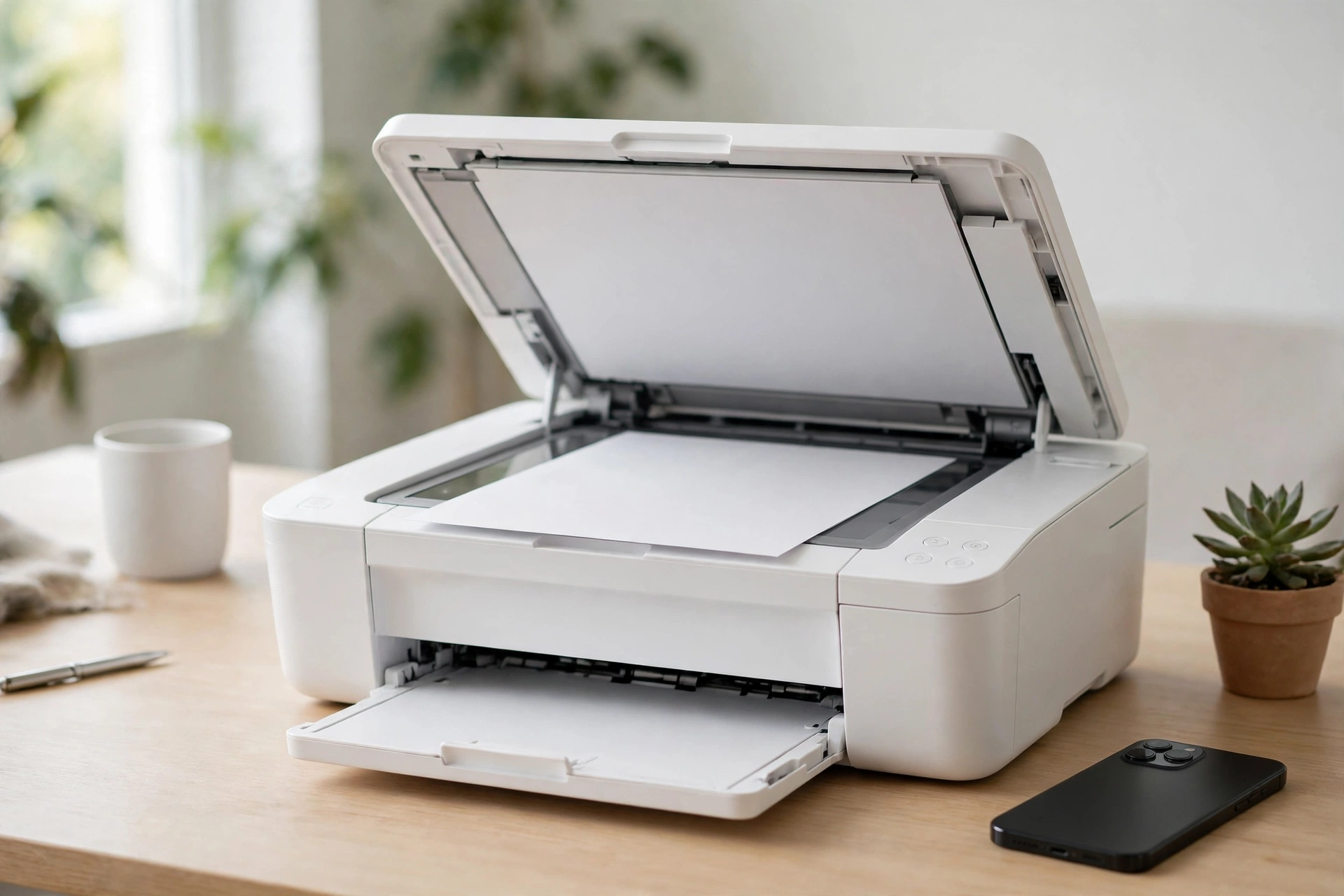
This guide shows how to scan with HP DeskJet 2855e from your phone, a Windows computer, or a Mac. Place your document or photo face-down on the scanner glass, lined up with the corner guide, and close the lid. Then open the HP App on your phone or HP Smart on your computer, tap Scan, pick your settings, and tap Scan again. The printer has a flatbed scanner only.
WHAT YOU NEED
You need the HP DeskJet 2855e, model 588S5A, switched on and set up already, plus the page or photo you want to scan. Your phone or computer must be on the same Wi-Fi network as the printer. The printer uses 2.4 GHz Wi-Fi only, so use that band if your router has two. On your phone you need the HP App, the new name for HP Smart Mobile. HP replaced HP Smart Mobile with the HP App in Fall 2025, so do not search for the old name. Download it only from HP Inc. and check the publisher name first, because fake HP apps have been found in app stores. On Windows you need HP Smart, with Print and Scan tiles. You do not need a USB cable; wireless scanning works once the printer is on your network.
HOW TO SCAN WITH HP DESKJET 2855E: PLACE THE PAGE ON THE GLASS
Every scan starts the same way. Lift the lid. Place your document or photo face-down on the scanner glass. Line up the top-left corner with the guide mark, usually a small arrow or corner line at the edge. If you place the page crooked, the scan will come out crooked. Close the lid gently. A closed lid keeps out room light and gives you a clean scan. If you scan a thick book, the lid may not close flat. Press it down gently, but do not force it.
The 2855e has a flatbed scanner and no automatic document feeder, so you place one page at a time by hand. A ten-page document takes ten scans. The flatbed is good for photos, ID cards, receipts, and book pages, because nothing bends or feeds through rollers. It is slow for a thick stack, and that is normal.
HOW TO SCAN WITH HP DESKJET 2855E: SCAN FROM YOUR PHONE WITH THE HP APP
The phone method is the fastest for most people. Open the HP App. It opens to a Devices page that lists your printers. If your 2855e is not listed, tap the plus sign to add it. Your phone must be on the same network as the printer, and Location Services and Bluetooth should both be on, because the app uses them to find the printer. Tap your printer, then tap the Scan tile.
Pick what you are scanning: a document or a photo. For a document, pick PDF. For a photo, pick an image file such as JPG. Pick color or black and white, then tap Scan. Check the preview. If it looks right, save it. The file is saved on your phone, where you can share it, print it, or send it by email. For more pages, place the next page on the glass and scan again. Save all the pages as one PDF file.
If the app asks for a PIN, look on the back of the printer or inside the ink access area. The default PIN is often printed there. You may also need to sign in to an HP account.
HOW TO SCAN WITH HP DESKJET 2855E: SCAN FROM WINDOWS WITH HP SMART
On Windows, open HP Smart. It still has Print and Scan tiles on the main screen. Click the Scan tile. HP Smart will find your 2855e on the network. If it does not, check that the printer is on and on the same Wi-Fi network as your computer, then restart both.
Before you scan, pick your settings. Choose the source, which is the flatbed, and the file type: PDF for documents, or an image format for photos. HP Smart on Windows supports scanning photos and images and saving as PDF. Choose color or grayscale, and the resolution. For a normal document, 300 dpi is a good default: sharp enough to read and small enough to email. For a photo you want to keep, pick 600 dpi. Choose the save folder and a clear file name. Then click Scan and check the file.
HOW TO SCAN WITH HP DESKJET 2855E: SCAN FROM A MAC
On a Mac, open HP Smart if you have it installed, and use the same Scan tile as on Windows. Pick PDF for documents or an image format for photos, set the resolution, and click Scan. If you do not want to install HP Smart, use Image Capture from the Applications folder. Pick the DeskJet 2855e in the left-hand list, place your page face-down on the glass, choose the save folder, pick PDF or an image format, and click Scan.
HOW TO SCAN WITH HP DESKJET 2855E: PHOTO OR PDF, AND WHAT RESOLUTION TO PICK
Pick PDF for anything made of words: letters, forms, receipts, school papers, and multi-page documents. A PDF keeps the pages together and prints cleanly. Pick an image format, such as JPG, for photos you want to keep or share.
For resolution, use 300 dpi for documents. It is the standard for readable scans and keeps the file size small. Use 600 dpi for old photos or small pictures you may want to enlarge later. Higher resolution makes bigger files, so do not pick the highest setting for every scan. Pick color for photos and color documents, and grayscale for black-and-white documents for smaller files. Check the preview after the first scan. If the text is too light or the photo looks washed out, change the setting and scan again. It is faster to rescan than to fix a bad scan later.
TROUBLESHOOTING: HOW TO SCAN WITH HP DESKJET 2855E WHEN THE PRINTER DOES NOT SHOW UP
The most common problem is that the app cannot find the printer. First, check the Wi-Fi. The printer and your phone or computer must be on the same network, and the printer only uses 2.4 GHz Wi-Fi. If your phone jumped to the 5 GHz band, switch it back and try again. Restart the printer, your router if you can, and the app, then tap the plus sign in the HP App and add the printer again. Make sure Location Services and Bluetooth are on, because the app needs them to find the printer.
If the app finds the printer but says scanning is unavailable, close the app fully and open it again, then restart the printer. Check that the printer has ink and paper, because some printers block scanning when they report an error. If the scan comes out blank, you placed the page face-up, so place it face-down and scan again. If it is cropped, line the page up with the corner guide and close the lid. If it looks dirty or streaky, clean the glass with a soft cloth lightly dampened with glass cleaner. Do not spray cleaner straight onto the glass.
WHAT NOT TO DO
Do not search for HP Smart Mobile. HP replaced it with the HP App in Fall 2025, and the old app will not help you. Do not install an app that claims to be from HP but lists a different publisher; check that the publisher is HP Inc. Do not place the page face-up. The scanner reads the side that touches the glass, so a face-up page gives you a blank scan. Do not expect the printer to feed a stack of pages. There is no automatic feeder on the 2855e, so each page goes on the glass by hand. Do not scan with the lid open in a bright room. Room light leaks in and washes out the scan.
ABOUT THIS MODEL
The HP DeskJet 2855e is a wireless all-in-one printer for home use. It prints, scans, and copies in color, with a flatbed scanner. It has a 60-sheet input tray, single-band Wi-Fi, and a USB 2.0 port. It uses HP 67 black and tri-color ink cartridges, and the box includes setup cartridges. The maximum color print resolution is 4800 x 1200 dpi. The maximum copy speed is 7.5 pages per minute in black and white. It prints on paper from 3 x 5 inches to 8.5 x 14 inches, and it supports manual duplex printing. It measures 11.97 inches deep, 16.7 inches wide, and 6.06 inches high, and it weighs 7.55 pounds. The model number is 588S5A.
Price: Not verified on Amazon live on 2026-11-17. Check the live price on Amazon before you buy.
FREQUENTLY ASKED QUESTIONS
How do I scan with HP DeskJet 2855e?
Place the page face-down on the glass and close the lid. Open the HP App on your phone or HP Smart on your computer, tap Scan, pick PDF or photo, and tap Scan again.
Which app do I use to scan with HP DeskJet 2855e?
Use the HP App on your phone. HP replaced HP Smart Mobile with the HP App in Fall 2025. On Windows and Mac, use HP Smart, which still has Print and Scan tiles.
Can the HP DeskJet 2855e scan multiple pages at once?
No. It has a flatbed scanner and no automatic document feeder, so you scan one page at a time. Save the pages together as one PDF file.
What resolution should I use to scan with HP DeskJet 2855e?
Use 300 dpi for normal documents. It is sharp enough to read and keeps the file small. Use 600 dpi for old photos or small pictures.
Why can the HP App not find my DeskJet 2855e?
Make sure the printer and your phone are on the same network and on 2.4 GHz Wi-Fi. Turn on Location Services and Bluetooth, restart the printer and the app, and add the printer again with the plus sign.
Why is my HP DeskJet 2855e scan blank?
You probably placed the page face-up. The scanner reads the side that touches the glass. Place it face-down, line it up with the corner guide, close the lid, and scan again.
FINAL VERDICT
Learning how to scan with HP DeskJet 2855e is simple once you know the two things that trip people up. First, the scanner is a flatbed, so every page goes on the glass by hand. Second, the phone app is now called the HP App, not HP Smart Mobile. Place the page face-down, open the right app, pick PDF for documents or an image format for photos, and save the file where you can find it. The 2855e is a good home printer for the odd scan, a photo, or a school form, as long as you do not expect it to feed a thick stack. Check the live price on Amazon first. If you like simple gear that earns its space, see How to Connect MNN Portable Monitor to MacBook with USB C — https://anaturalday.net/post/how-to-connect-mnn-portable-monitor-to-macbook-with-usb-c — for the same plain approach with a second screen.
SOURCES
- HP DeskJet 2855e All-in-One Printer User Manual — https://manuals.plus/asin/B0CT2R7199.pdf — accessed 2026-11-17.
- HP Support Community, "i don't know how to scan on my deskjet 2855e" — https://h30434.www3.hp.com/t5/Scanning-Faxing-Copying/i-don-t-know-how-to-scan-on-my-deskjet-2855e/td-p/9590737 — accessed 2026-11-17.
- Amazon product page — https://www.amazon.com/dp/B0CT2R7199?tag=theinfojourna-20 — checked 2026-11-17. Price: Not Found / Unverified. Rating: Not Found / Unverified.

Written by
MD DOLAR HOSEN
Technology expert and the founder and author of A Natural Day. He tests and reviews everyday tech, gadgets, and home essentials, and writes practical buying gui…



Comments (0)
Join the discussion — sign in to leave a comment.
Sign in to commentNo comments yet. Be the first to share your thoughts.