How to Set Password on Samsung T7 Shield SSD
QUICK ANSWER
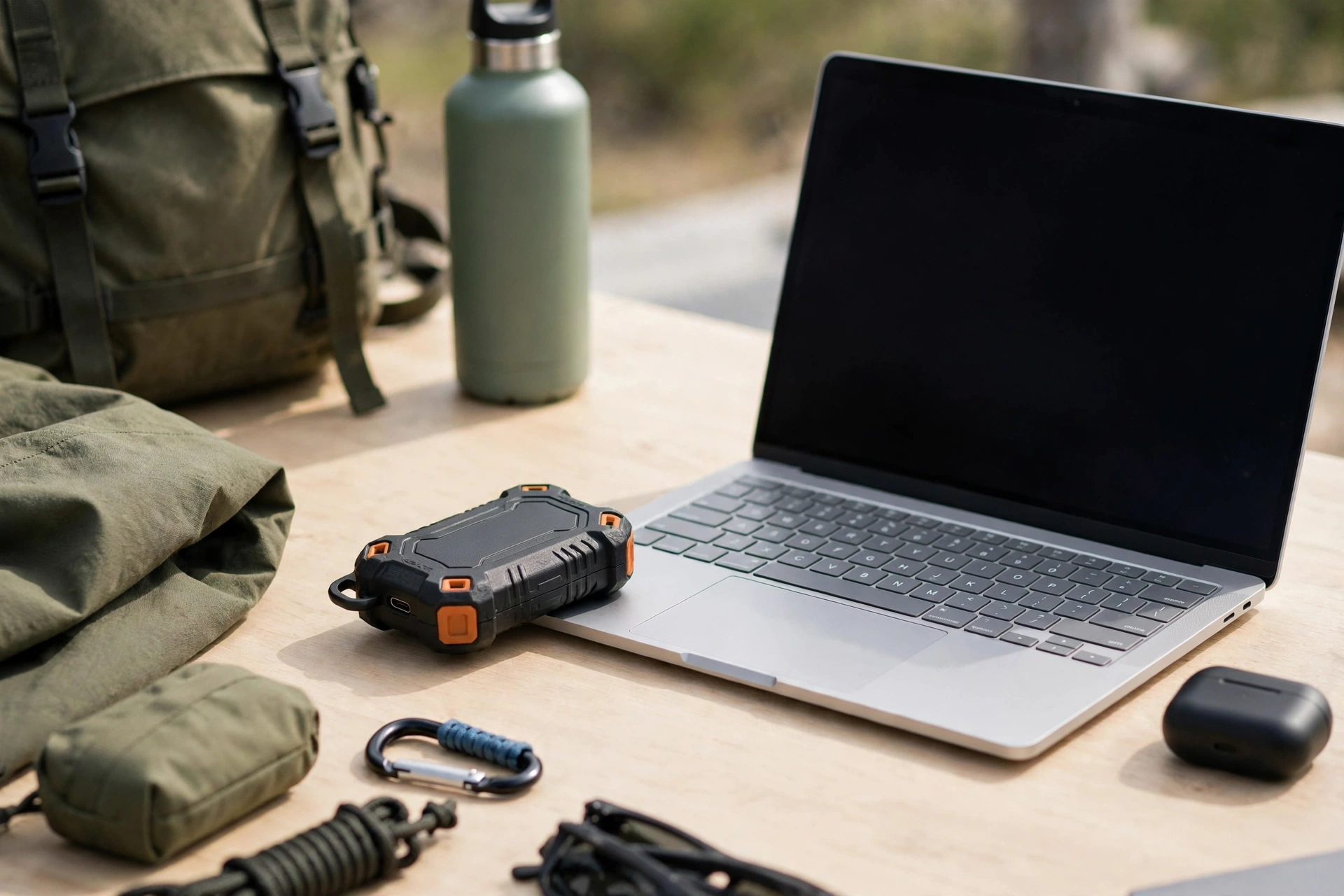
This guide shows how to set password on Samsung T7 Shield SSD in a few minutes. Plug the drive into your computer. Install Samsung Portable SSD Software 1.0 from the drive itself, or download it from samsung.com/samsungssd. Open the software, agree to the terms, and turn on Security Mode with a password. After that, type the password and click UNLOCK every time you plug the drive in. If you forget the password, the drive must be restored to factory settings, and all your data will be lost.
WHAT YOU NEED
You need the Samsung T7 Shield Portable SSD, model MU-PE1T0S/AM for the 1TB Black version, and a computer with a free USB port. The box includes a USB C to A cable and a USB C to C cable, so pick the one that fits your computer. Your computer needs Windows 7 or higher, or macOS 10.10 or higher. The drive is pre-formatted to exFAT, which works on Windows, Mac, and Android, so you do not need to format it first. You need Samsung Portable SSD Software 1.0. It is already on the drive. Magician 7.0 and later also supports the security functions.
HOW TO SET PASSWORD ON SAMSUNG T7 SHIELD SSD: BACK UP FIRST
Before you set a password, back up your important files somewhere else. A password protects your data, but it also locks you out if you forget it. The only fix is a factory reset, which erases everything. So copy your files to your computer or to another drive first. Write the password down on paper and keep it somewhere safe. Do not store the only copy of the password on the drive itself.
HOW TO SET PASSWORD ON SAMSUNG T7 SHIELD SSD: INSTALL THE SOFTWARE
The password is set in Samsung Portable SSD Software 1.0. You do not set it in Windows or in File Explorer. To install it, plug the T7 Shield into your computer. Open File Explorer on Windows or the Desktop on a Mac. You will see the drive, and on it an application called "Samsung Portable SSD 1.0". Open it to run the installer. The installer files are named SamsungPortableSSD_Setup_Win_1.0.exe for Windows and SamsungPortableSSD_Setup_Mac_1.0.pkg for Mac. On a Mac, the software may ask you to enable the device driver before it will run.
If you formatted the drive after you bought it, the software is gone, because formatting deletes it. Download the latest version from samsung.com/samsungssd instead. The software is made for the T7 series only: the T7 Shield, the T7 Touch, and the standard T7. Once installed, you will see its icon on your Desktop. Double-click it to open it.
HOW TO SET PASSWORD ON SAMSUNG T7 SHIELD SSD: TURN ON SECURITY MODE
Open Samsung Portable SSD Software 1.0. The software will ask you about Security Mode. Security Mode is optional. You can use the T7 Shield without it. But if you want a password, this is where you set it. Follow the on-screen instructions. Agree to the terms. Then choose "Security with Password". Type the password you want to use. Pick a strong password that you will remember. Do not use your birthday or "123456". Type it again to confirm it, then finish the setup.
When Security Mode is on, the drive is locked until you unlock it. The status will show as Locked when Security Mode is on but you have not unlocked the drive yet. It will show as Unlocked after you type the password and unlock it. If Security Mode is off, no icon is shown and the full storage is visible right away. You can turn Security Mode on or off later from the Settings page, but turning it off also needs your password.
HOW TO SET PASSWORD ON SAMSUNG T7 SHIELD SSD: UNLOCK IT EACH TIME
After you set the password, every connection works the same way. Plug the T7 Shield into your computer. Open Samsung Portable SSD Software 1.0 if it does not open on its own. Type your password and click UNLOCK. Then the full drive appears and you can use it like normal. You must do this each time you connect the drive.
If you do not unlock the drive, you will see only a small security partition of about 128 MB. Your files are behind the password, and the full capacity only appears after a successful unlock. The password you set on a computer also works on Android. If you use the Samsung Portable SSD app on an Android phone or tablet, type the same password and tap UNLOCK to open the drive there too.
HOW TO SET PASSWORD ON SAMSUNG T7 SHIELD SSD: CHANGE OR REMOVE THE PASSWORD
You can change the password later. Open Samsung Portable SSD Software 1.0 and click the SETTINGS button. Click CHANGE next to Name and Password. Type your current password first, then type the new one. Save it, and write the new password down right away. You can also turn Security Mode off from the same Settings page. Click the toggle button and type your password. Turning it off removes the password lock, so anyone who plugs the drive in can read it. Only do that if you mean to.
Before you update the software or the drive firmware, turn Security Mode off. The manual says firmware updates need Security Mode off, and you must never interrupt a firmware update, because it can damage the drive.
WHAT HAPPENS IF YOU FORGET THE PASSWORD
Read this part twice, because it is the most important warning in the manual. If you forget the password, there is no reset button, no hint that opens the drive, and no master password. Samsung states that a forgotten password means the T7 Shield must be restored to factory settings through Samsung's online service or a Samsung Service Center. That factory reset erases everything on the drive. Your files are gone. The manual also names Samsung Magician's PSID Revert as a way to restore the drive, and that also erases everything. This is not a flaw. It is how the encryption works. The data is locked with your password, and without it the data cannot be read by anyone, including Samsung.
So if you forget the password, you lose the files, but you can still use the drive again after the reset. This is why the manual tells you to write the password down and store it safely, and to back up important data. Do not set a password on the only copy of your photos or work files.
TROUBLESHOOTING: HOW TO SET PASSWORD ON SAMSUNG T7 SHIELD SSD WHEN IT DOES NOT WORK
If the software will not open, check that the drive is plugged in firmly and try the other cable from the box. Use a USB 3.2 Gen 2 port if your computer has one, because the drive is built for 10 Gbps. If the installer is missing from the drive, download the latest version from samsung.com/samsungssd. If the Security Mode option is greyed out, check that you are running Samsung Portable SSD Software 1.0 and not a different Samsung tool. One common mistake is to open Samsung Data Migration instead. That tool copies a computer's drive to a new SSD. It cannot set a password on the T7 Shield.
If you type the password and it says it is wrong, check Caps Lock and try again slowly. Check the paper where you wrote it down. If the drive shows only about 128 MB after you plug it in, Security Mode is on and you have not unlocked it yet. Open the software, type the password, and click UNLOCK. If the full capacity still does not appear after a correct unlock, unplug the drive, plug it back in, and unlock it again.
WHAT NOT TO DO
Do not use Samsung Data Migration to set a password. It is the wrong tool. The right tool is Samsung Portable SSD Software 1.0. Do not set a password and then forget it. Write it down. Do not store the only copy of important files on a locked drive with no backup. Do not format the drive and expect the software to survive. Formatting deletes the software, and you will need to download it again. Do not unplug the drive without ejecting it first. Always use "Eject", "Unmount", or "Safely Remove Hardware" before you pull the cable, because unplugging during a write can corrupt your data.
ABOUT THIS MODEL
The Samsung T7 Shield Portable SSD is a pocket-sized drive built for speed and toughness. It uses the NVMe protocol with a USB 3.2 Gen 2 interface, with read speeds up to 1,050 MB/s and write speeds up to 1,000 MB/s. The 1TB model is MU-PE1T0S/AM. It has an aluminum body covered with tough rubber, and it is rated IP65 for dust and water resistance. Samsung tested it with drops from up to three meters. It comes pre-formatted to exFAT, which works on Windows, Mac, and Android. It works with Windows 7 or higher, macOS 10.10 or higher, and Android Lollipop or higher. The 4TB version needs a 64-bit operating system.
Price: Not verified on Amazon live on 2026-11-17. Check the live price on Amazon before you buy.
FREQUENTLY ASKED QUESTIONS
How do I set a password on Samsung T7 Shield SSD?
Plug the drive into your computer, install Samsung Portable SSD Software 1.0 from the drive or from samsung.com/samsungssd, open the software, agree to the terms, and turn on Security Mode with a password.
Which software sets the password on the Samsung T7 Shield?
Samsung Portable SSD Software 1.0. Do not use Samsung Data Migration. That tool is for cloning a computer drive, and it cannot set a password on the T7 Shield.
Do I need a password on the T7 Shield every time I plug it in?
Yes. If Security Mode is on, you must type the password and click UNLOCK each time you connect the drive. Without the unlock, you only see a small partition of about 128 MB.
What happens if I forget my Samsung T7 Shield password?
The drive must be restored to factory settings through Samsung's online service, a Samsung Service Center, or Magician's PSID Revert. That erases all your data. There is no password reset.
Can I use my T7 Shield password on Android?
Yes. A password set on a computer also works in the Samsung Portable SSD app on Android. Type the same password and tap UNLOCK.
How do I change the password on my Samsung T7 Shield?
Open Samsung Portable SSD Software 1.0, click SETTINGS, then click CHANGE next to Name and Password. Type your current password, then type the new one.
FINAL VERDICT
Learning how to set password on Samsung T7 Shield SSD is quick, but the warning matters more than the steps. Install Samsung Portable SSD Software 1.0, turn on Security Mode, and set a password you will remember. Unlock the drive each time you plug it in. Back up your files first, and write the password down, because a forgotten password means a factory reset and total data loss. Just check the live price on Amazon first, and do not use the wrong software. If you like simple gear that earns its space, see How to Fix Anker USB C Hub HDMI Not Working on MacBook — https://anaturalday.net/post/how-to-fix-anker-usb-c-hub-hdmi-not-working-on-macbook — for the same plain approach with a USB-C hub.
SOURCES
- Samsung Portable SSD T7 Shield User Manual — https://manuals.plus/m/a54dfe62b4aa2202a49cdab2d27bd1469526cb04e35795097c9a4b909b5e7854 — accessed 2026-11-17.
- Amazon product page — https://www.amazon.com/dp/B09VLK9W3S?tag=theinfojourna-20 — checked 2026-11-17. Price: Not Found / Unverified. Rating: Not Found / Unverified.

Written by
MD DOLAR HOSEN
Technology expert and the founder and author of A Natural Day. He tests and reviews everyday tech, gadgets, and home essentials, and writes practical buying gui…
Comments (0)
Join the discussion — sign in to leave a comment.
Sign in to commentNo comments yet. Be the first to share your thoughts.