How to Set Up Wyze Cam v3
QUICK ANSWER
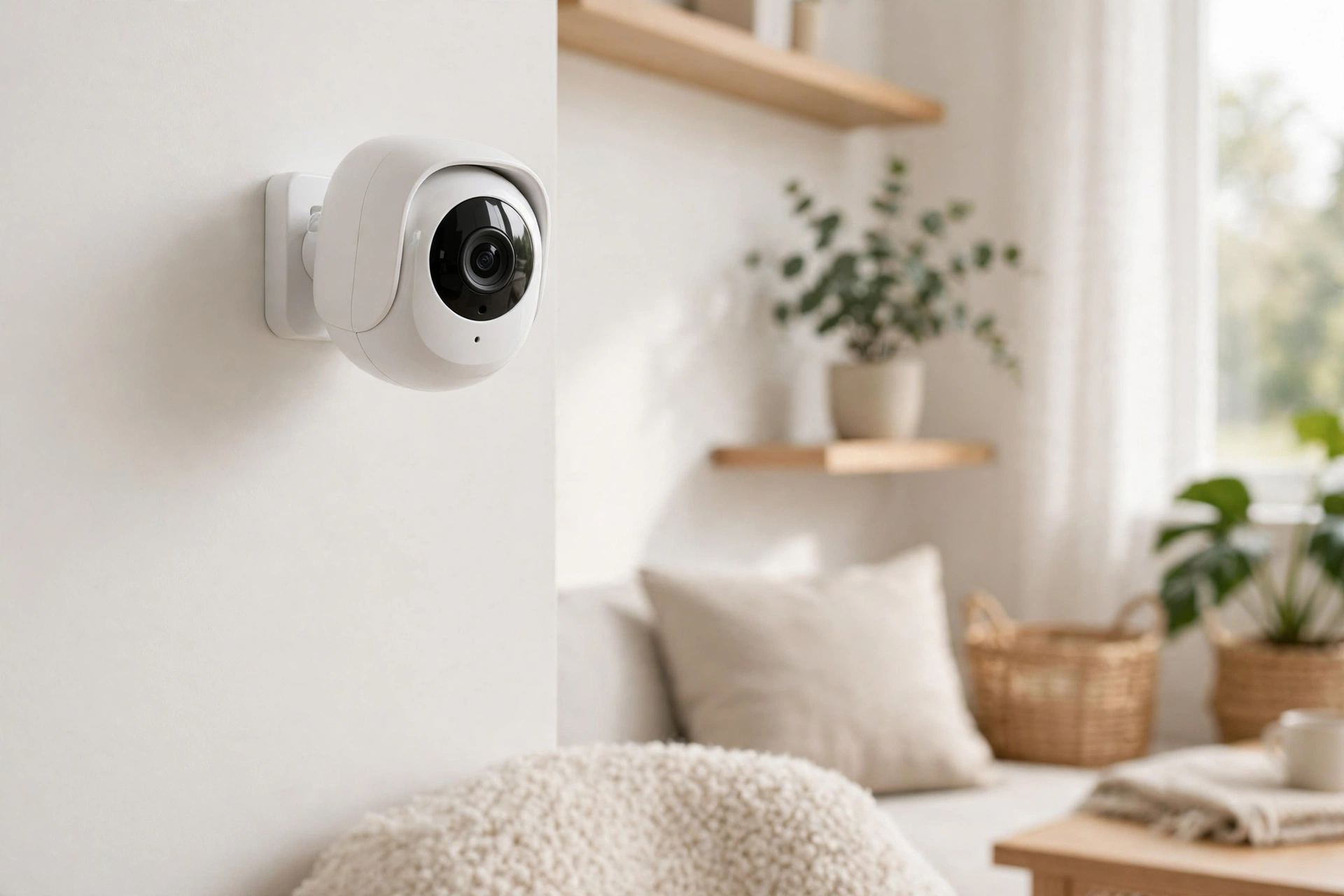
This guide shows how to set up Wyze Cam v3 in a few minutes. Download the Wyze app and create an account. Plug in the camera and wait about 20 seconds until the status light flashes red. Press the SETUP button on the bottom for 3 seconds until you hear the voice prompt. Add the camera in the app, pick your 2.4 GHz Wi-Fi network, and hold your phone still so the camera can scan the QR code. When the light turns solid blue, the camera is working.
WHAT YOU NEED
You need the Wyze Cam v3, model WYZEC3BK-SZFBA, in Black, plus a phone with the free Wyze app, a 2.4 GHz Wi-Fi network, and your Wi-Fi password. The box has the camera, a USB cable, a screw assembly, a wall plate, an indoor power adapter, mounting tape, a mounting screw, and a Quick Start Guide. The microSD card is not in the box, and the camera runs on corded power, not on a battery.
HOW TO SET UP WYZE CAM V3: DOWNLOAD THE WYZE APP FIRST
Start with the app, not the camera. Download the free Wyze app from the App Store or Google Play, then create an account or log in. Make sure your phone is on the same 2.4 GHz Wi-Fi network you want the camera to use, and check that you know your Wi-Fi password. A wrong password is one of the most common reasons a setup fails.
HOW TO SET UP WYZE CAM V3: USE 2.4 GHZ WI-FI ONLY
This is the step that stops most beginners. The Wyze Cam v3 works only on 2.4 GHz Wi-Fi. It will not connect to a 5 GHz network. Many routers show one name for both bands, or two names that look almost the same. If your router has separate names, pick the one that says 2.4 GHz, or 2.4G. If it uses one name for both bands, turn on a separate 2.4 GHz network in your router settings. Move the camera closer to the router during setup, then move it to its final spot after it connects. Do not keep trying the 5 GHz network. It will not work.
HOW TO SET UP WYZE CAM V3: PLUG IT IN AND WAIT FOR THE RED LIGHT
Plug the camera into a power outlet with the USB cable and the power adapter from the box. Wait about 20 seconds, or until the status light flashes red. Solid red means it is still starting up. Flashing red means it is ready to connect. Do not press SETUP before the light flashes red. If the light never comes on, check the cable and the outlet, and try a different outlet. Do not unplug the camera halfway through setup.
HOW TO SET UP WYZE CAM V3: PRESS THE SETUP BUTTON UNTIL YOU HEAR THE VOICE
The SETUP button is on the bottom of the camera. Press and hold it for 3 seconds, or until you hear the voice prompt that says the camera is ready to connect. A quick tap is not enough. If you let go too early, the camera will not enter setup mode, and the app will not find it. If you hear nothing, hold the button again for a full 3 seconds. After the voice prompt, the light should be flashing red. If it is flashing red and blue, the connection is already in progress. A solid blue light means the camera is working.
HOW TO SET UP WYZE CAM V3: ADD THE CAMERA IN THE WYZE APP
Go back to the Wyze app. Tap the plus sign to add a new device and pick Wyze Cam v3 from the list. The app will ask you to pick your Wi-Fi network. Choose your 2.4 GHz network and type the password with care. Wi-Fi passwords are case sensitive, so check each letter. The app will then show a QR code on your phone screen. Make sure the screen is bright, and wipe the lens clean. A dirty lens can stop the scan from working.
HOW TO SET UP WYZE CAM V3: SCAN THE QR CODE WITHOUT FAILING
The QR code scan is where many setups fail, and the manuals barely explain it. Hold your phone still in front of the lens, about a hand span away at first, then move it slowly closer or further back until the camera beeps or the app says it worked. Hold it steady at each distance, and keep the screen facing the lens straight on. Avoid bright light behind the phone, because glare can stop the camera from reading the code. If you are outside in strong sun, step into shade. If the scan keeps failing, turn your phone brightness to full, clean the lens, and try again in a dimmer spot. Do not move the camera or unplug it while it connects. When the light turns solid blue, the camera is working. Name it something clear, like Front Door, then open the live view. Check that the picture is clear and the camera points where you want it to. Test two-way audio and motion detection from the app.
HOW TO SET UP WYZE CAM V3: MOUNT IT ON A WALL OR CEILING
You can use the camera on a shelf, or mount it with the screw assembly, wall plate, mounting tape, and mounting screw from the box. Pick a spot with a clear view, close enough to a power outlet, because the camera needs corded power. For outdoor use, you need the Wyze Outdoor Power Adapter, sold separately. The camera is rated IP65 for water and dust, so it can handle rain, but it still needs the outdoor adapter for safe outdoor power. After mounting, check the live view again and adjust the angle.
HOW TO SET UP WYZE CAM V3: ADD A MICROSD CARD FOR 24/7 RECORDING
Without a card, the camera still gives free 12-second clips when it detects motion or sound. That is enough for basic alerts. But if you want continuous recording, you need a microSD card. The camera takes a microSD card up to 256 GB, sold separately. The slot is on the back of the camera. Push the card in until it clicks, then set the camera to record all the time in the app. A Cam Plus subscription is a different option. It gives full-length event videos, back-to-back recording with no gaps, and smart detection for people, packages, vehicles, and pets. You do not need Cam Plus to use the camera.
HOW TO SET UP WYZE CAM V3: TURN ON MOTION AND SOUND ALERTS
Motion and sound detection are the main point of this camera. Open the camera settings in the Wyze app and make sure detection is turned on. You can set detection zones, so the camera only watches the parts of the picture that matter. This cuts down false alerts from a busy street or a tree that moves in the wind. Check your phone notification settings too. The Wyze app must be allowed to send notifications, or you will not get alerts. The camera also has color night vision, with a Starlight Sensor and an f/1.6 lens. You can link it to Alexa or Google Assistant.
TROUBLESHOOTING: HOW TO SET UP WYZE CAM V3 WHEN IT WILL NOT CONNECT
If the camera will not connect to Wi-Fi, work through this list in order. First, is the network 2.4 GHz? The camera does not support 5 GHz. Second, is the password right? Type it again, slowly. Third, is the camera close enough to the router? Move it closer and try again. Fourth, restart the router and the camera, then start from the SETUP button again. If the camera has no power, check the adapter, the cable, and the outlet. If the QR code will not scan, raise the phone brightness, clean the lens, and hold the phone still. If the video looks poor, clean the lens and check the Wi-Fi signal. If two-way audio does not work, check the microphone and speaker settings in the app. If you get no motion alerts, check that detection is on and review your detection zones.
ABOUT THIS MODEL
The Wyze Cam v3 is a small indoor and outdoor camera. It records 1080p full HD video, with color night vision from a Starlight Sensor and an f/1.6 aperture. It detects motion and sound, has two-way audio, and works with Alexa and Google Assistant. It takes a microSD card up to 256 GB, is rated IP65 for water and dust, measures 2.5 by 2.5 by 4 inches, and weighs 7.8 ounces. It runs on corded power at 110 volts and 24 watts, with a one-year limited warranty.
Important warning before you buy: Wyze.com says the Wyze Cam v3 is discontinued. The Wyze site says this product is no longer available and will not be coming back. Some third-party trackers still showed the camera in stock on Amazon in mid-November 2026, but that stock was not verified live, and the Amazon page returned an error when read live on 2026-11-17. Do not assume the camera is in stock. Check the live Amazon listing first, and make sure it is the Black model WYZEC3BK-SZFBA and in stock before you buy. If the listing is gone or shows a different model, do not buy it. A newer Wyze camera may be a better pick if the v3 is no longer sold.
Price: Not verified on Amazon live on 2026-11-17. Check the live price on Amazon before you buy.
FREQUENTLY ASKED QUESTIONS
How do I set up Wyze Cam v3?
Download the Wyze app and create an account. Plug in the camera and wait about 20 seconds until the light flashes red. Press SETUP for 3 seconds until you hear the voice prompt. Add the camera in the app, pick your 2.4 GHz network, and scan the QR code. A solid blue light means it is working.
Why will my Wyze Cam v3 not connect to Wi-Fi?
The most common reason is 5 GHz Wi-Fi. The camera works only on 2.4 GHz. Pick the 2.4 GHz network, check your password, and move the camera closer to the router.
Why will my Wyze Cam v3 not scan the QR code?
Hold the phone still and straight in front of the lens. Turn the brightness to full and clean the lens. Move the phone slowly closer or further back. Avoid glare and strong sunlight.
Does Wyze Cam v3 need a subscription?
No. It gives free 12-second clips for motion and sound events. Cam Plus adds full-length videos, back-to-back recording, and smart detection for people, packages, vehicles, and pets.
Is the Wyze Cam v3 still available to buy?
Wyze.com says it is discontinued and will not be coming back. Some sellers may still have stock on Amazon, but this was not verified live on 2026-11-17. Check the live listing for the Black model WYZEC3BK-SZFBA first.
FINAL VERDICT
Learning how to set up Wyze Cam v3 is quick once you know the three traps. Use 2.4 GHz Wi-Fi only. Hold the SETUP button for 3 seconds until you hear the voice prompt. Hold your phone still for the QR code scan. Get those three right, and the rest is just following the app. The camera is a strong budget pick on paper: 1080p video, color night vision, two-way audio, motion zones, and a microSD slot for 24/7 recording. The big catch is that Wyze has discontinued it. So check the live Amazon listing for the Black model WYZEC3BK-SZFBA before you buy, and check the live price too. If it is in stock at a price you like, this guide will get it running fast. If it is gone, a newer Wyze camera is the safer buy. If your Wi-Fi is the weak link, see How to Set Up TP-Link Deco X55 Mesh WiFi with Existing Router — https://anaturalday.net/post/how-to-set-up-tp-link-deco-x55-mesh-wifi-with-existing-router — because a strong 2.4 GHz signal makes setup easier.
SOURCES
- Wyze Cam V3 Smart Home Security Camera User Manual — https://manuals.plus/asin/B0DGPS647H — accessed 2026-11-17.
- Wyze Cam v3 Quick Start Guide — https://manuals.plus/m/8f97081f1358cfff02df9f7dcf87a683dd80fe0fa7a033d198e836546b7d8e7b — accessed 2026-11-17.
- Amazon product page — https://www.amazon.com/dp/B0DGPS647H?tag=theinfojourna-20 — checked 2026-11-17. Page returned HTTP 403 when read live. Price: Not Found / Unverified. Rating: Not Found / Unverified.

Written by
MD DOLAR HOSEN
Technology expert and the founder and author of A Natural Day. He tests and reviews everyday tech, gadgets, and home essentials, and writes practical buying gui…
Comments (0)
Join the discussion — sign in to leave a comment.
Sign in to commentNo comments yet. Be the first to share your thoughts.