How to Fix Anker USB C Hub HDMI Not Working on MacBook
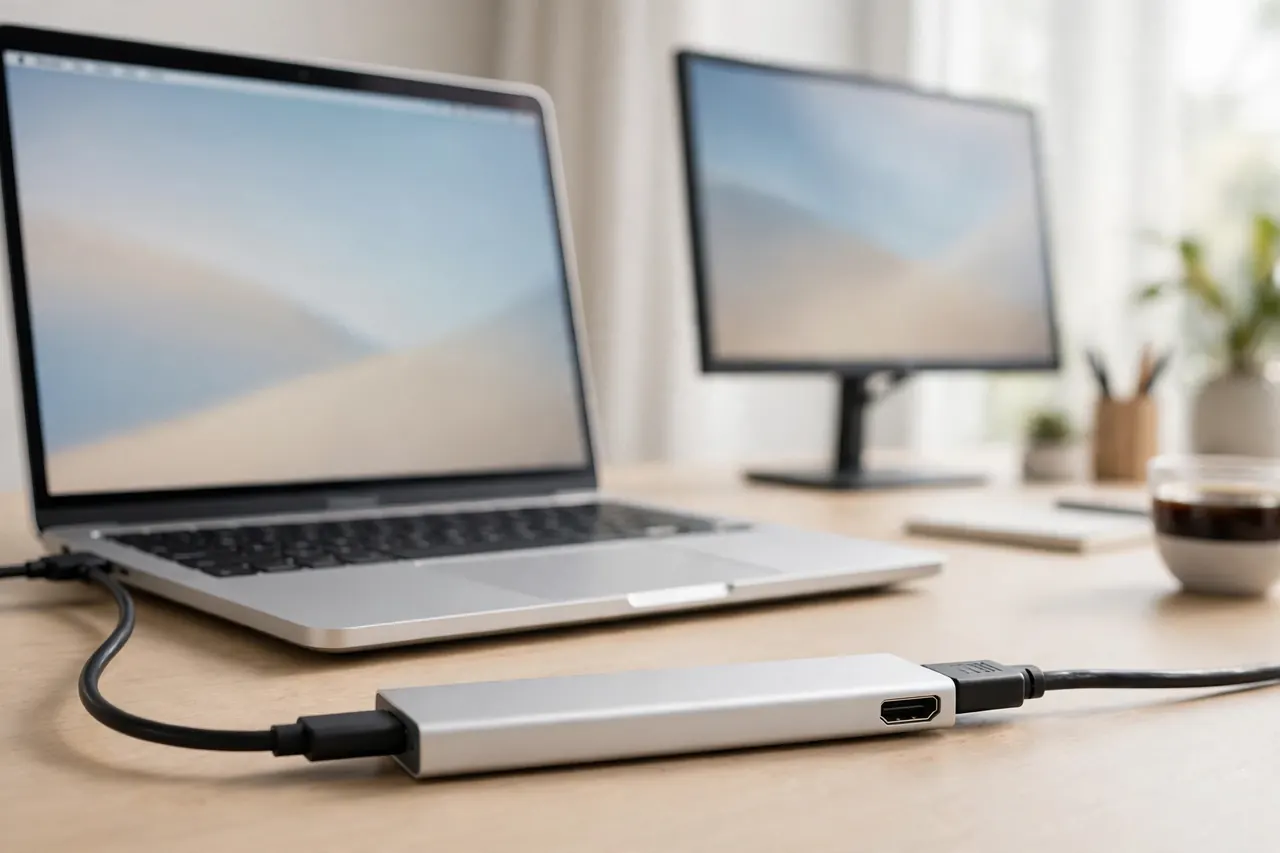
QUICK ANSWER: HOW TO FIX ANKER USB C HUB HDMI NOT WORKING ON MACBOOK
If you need to know how to fix Anker USB C Hub HDMI not working on MacBook, start with the port, not the hub. Most cases come down to four things: the MacBook USB-C port, the HDMI cable, the monitor input, or the hub itself. Work through them in order, and change only one thing at a time.
First, confirm that the USB-C port on your MacBook supports DisplayPort Alternate Mode, or DP Alt Mode. The Anker A83D2 needs DP Alt Mode to send video through HDMI. If the port does not support it, no hub setting will fix the black screen.
Second, check the simple things. Make sure the hub LED is on, push the HDMI cable in firmly, and set the monitor to the correct HDMI input. Then test each part on its own: try a different cable, a different monitor, and, if you can, a different laptop.
WHAT YOU NEED BEFORE YOU START
You do not need special tools. You need a few minutes, a second HDMI cable if you have one, and a second monitor or laptop if you can borrow one.
Check the hub LED when you plug it in. It should be on when the hub is connected. If it is off, try the other USB-C port on your MacBook.
Know which HDMI input you used, such as HDMI 1 or HDMI 2. Many "no signal" problems are just a monitor set to the wrong input. The charger is not included, so bring your own USB-C Power Delivery charger if the MacBook needs power.
STEP 1: CHECK DP ALT MODE — HOW TO FIX ANKER USB C HUB HDMI NOT WORKING ON MACBOOK STARTS HERE
DP Alt Mode is the key fact for this model. The A83D2 manual says the host USB-C port must support DisplayPort Alternate Mode and Power Delivery for full use. The hub also works with USB4 and Thunderbolt 3, 4, and 5 ports.
Some USB-C ports carry data and power only. They cannot carry video. DP Alt Mode lets a USB-C port carry a video signal as well, and without it the HDMI port has no video to send.
Check the official specifications for your exact MacBook model. Confirm that at least one USB-C port supports DP Alt Mode. If no port supports it, the A83D2 cannot give you HDMI output on that MacBook.
STEP 2: TRY ANOTHER USB-C PORT — HOW TO FIX ANKER USB C HUB HDMI NOT WORKING ON MACBOOK
Unplug the hub, wait five seconds, and plug it into a different USB-C port on the same MacBook. Use the built-in USB-C cable, not an adapter or extension cable. Push the plug in firmly until it sits flat.
Wait a few seconds and watch the hub LED. Then open System Settings on your MacBook and go to Displays. See if the external monitor appears, and try Mirror or Extend.
If one port works and the other does not, use the working port. A single faulty or limited port is common, and it does not mean the hub is broken. Also try the test with the charger plugged into the hub's PD input port.
STEP 3: TEST THE HDMI CABLE DIRECTLY — HOW TO FIX ANKER USB C HUB HDMI NOT WORKING ON MACBOOK
A bad HDMI cable is one of the most common causes of a black screen. Anker support lists the cable as one of the four parts to check, along with the laptop, the monitor, and the hub. Start by pushing both ends of the cable in firmly.
Next, try a different HDMI cable, ideally one you know works with another device. If the picture appears, the first cable was the fault. Replace it.
Anker also advises a direct test: plug the HDMI cable directly into your device and see if you get a stable connection. If the direct connection works but the hub connection does not, the fault is more likely in the hub or the USB-C link.
STEP 4: TEST ANOTHER MONITOR AND CHECK THE INPUT — HOW TO FIX ANKER USB C HUB HDMI NOT WORKING ON MACBOOK
First, check the input. Use the monitor menu to set the input to the HDMI port you used. If the monitor has two HDMI ports, make sure you picked the right one.
Next, try a different monitor if you can. If the second monitor works, the first monitor may have a setting or port problem. Try its other HDMI port if it has one.
Check System Settings, then Displays, on your MacBook. If the monitor shows up, set it to 60Hz for 4K use with the A83D2. Try Mirror if Extend does not show a picture.
STEP 5: RESET PRAM ON INTEL MACS AND UPDATE MACOS ON M1 MACBOOKS — HOW TO FIX ANKER USB C HUB HDMI NOT WORKING ON MACBOOK
Anker gives different Mac advice for Intel chips and M1 chips. Use the step that matches your MacBook. Do not mix them up.
For an Intel-chip Mac, Anker advises a PRAM reset. Power off your Mac, press the power button, then hold Command, Option, P, and R until the Mac restarts a second time. On older Mac versions, you will hear the start-up chime on restart.
For a MacBook with the M1 chip, Anker advises updating to the latest OS version. Go to System Settings, then General, then Software Update, install the update, and restart. This article claims no extra M1, M2, or M3 limits for the A83D2 beyond that advice, because none was found in the sources used here.
STEP 6: UNPLUG, REBOOT, AND RECONNECT IN THE RIGHT ORDER — HOW TO FIX ANKER USB C HUB HDMI NOT WORKING ON MACBOOK
Unplug the hub from the MacBook and the HDMI cable from the monitor. Turn the monitor off, then on again. Restart your MacBook with nothing else plugged in.
When the MacBook is back on the desktop, plug the hub in first. Wait for the LED to come on, then plug the HDMI cable into the hub and the monitor. Set the monitor to the correct input and check Displays in System Settings.
Try the hub on a different laptop with a USB-C port that supports DP Alt Mode, if you can. If it works there, the fault is likely with the first MacBook. If it fails on two laptops, with two cables and two monitors, the hub itself is the most likely fault. If the LED is on but there is still no picture, contact Anker support at [email protected]. The manual notes an 18-month warranty, so keep your proof of purchase.
WHICH PORT DOES WHAT ON THE ANKER A83D2 HUB
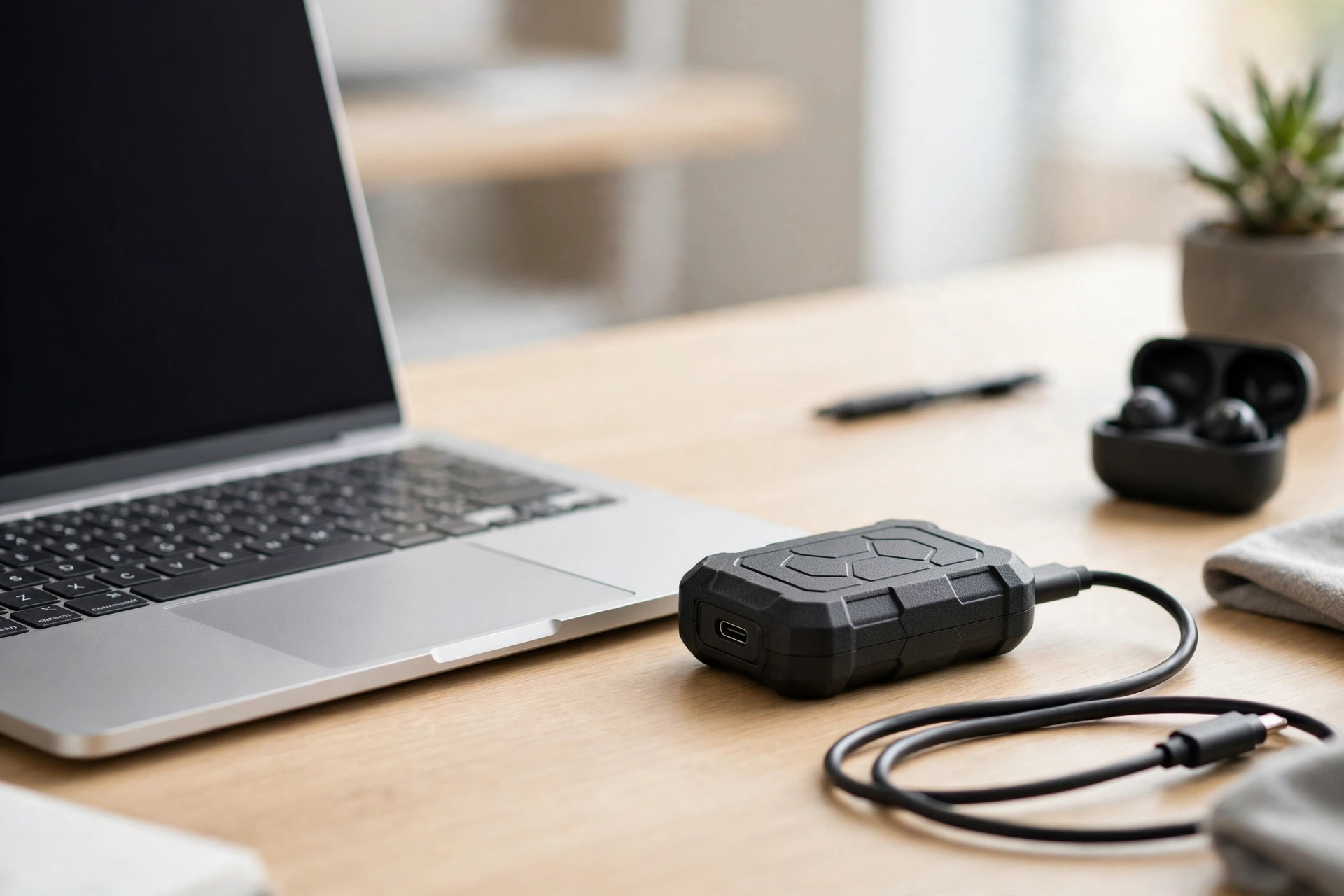
The A83D2 is a 7-in-1 hub. It has one HDMI port, two USB-A 3.0 ports, one USB-C data port, one USB-C PD input port, one SD card slot, and one TF, or microSD, slot. It also has a built-in USB-C host cable.
Only the HDMI port gives video output. The USB-C data port does not support video output, so a USB-C to HDMI adapter plugged into it will give no picture. Use the HDMI port for the monitor.
The HDMI port supports 4K at 60Hz, or 3840 by 2160 at 60Hz. Use 60Hz from the manual; one retailer listing says 30Hz, but that conflicts with the manual. The USB-A 3.0 ports and the USB-C data port each offer up to 5 Gbps, and the PD input takes up to 100W and passes up to 85W to the laptop.
WHAT NOT TO DO WHEN YOUR ANKER HUB HDMI IS NOT WORKING
Do not plug the monitor into the USB-C data port and expect video. That port is for data only. Use the HDMI port.
Do not use the specs of a different Anker hub for the A83D2. The A83D2 is not the Anker 343, model A8372, with dual 4K HDMI ports. It is also not the Anker 547, model A8354, a 7-in-2 hub for MacBook that uses two adjacent ports. Do not use 4K at 30Hz figures from models A8365 or A8338 for the A83D2 either.
Do not buy a new hub before you test the cable, the monitor, and a second port. Do not force the built-in USB-C cable, and do not ignore the LED. If the LED is off, check the connection and the port before you blame the monitor.
ABOUT THIS MODEL: ANKER USB C HUB A83D2
The Anker USB C Hub, 7-in-1 Multi-Port USB Adapter, Model A83D2, ASIN B0DXJQT19B, is a compact hub for laptops with a USB-C port that supports DP Alt Mode and Power Delivery. It adds one HDMI port, two USB-A 3.0 ports, one USB-C data port, one USB-C PD input port, and SD and TF card slots, all through one built-in USB-C cable.
The HDMI port supports 4K at 60Hz, the data ports run at up to 5 Gbps, and the PD input takes up to 100W and passes up to 85W to the laptop. The hub weighs 2.36 ounces, or 66.5 grams, and Anker states an 18-month warranty in the manual.
Price: Not verified on Amazon live on 2026-11-17. Check the live price on Amazon before you buy.
FAQ: HOW TO FIX ANKER USB C HUB HDMI NOT WORKING ON MACBOOK
Why is my Anker hub HDMI not working on my MacBook?
The most common causes are a USB-C port without DP Alt Mode, a faulty HDMI cable, a monitor on the wrong input, or a hub fault.
How do I know if my MacBook USB-C port supports DP Alt Mode?
Check the official specifications for your exact MacBook model, or try each USB-C port in turn.
Does the Anker A83D2 support 4K at 60Hz?
Yes. The manual states the HDMI port supports 4K at 60Hz, or 3840 by 2160 at 60Hz.
Can I get video from the USB-C data port on the A83D2?
No. The manual states the USB-C data port does not support video output. Only the HDMI port gives video.
How do I reset PRAM on an Intel Mac?
Power off the Mac, press the power button, then hold Command, Option, P, and R until the Mac restarts a second time.
What should I do on an M1 MacBook if HDMI does not work?
Anker advises updating to the latest OS version. Install the update, restart, and test the hub again.
Does the A83D2 come with a charger?
No. A charger is not included. For 85W pass-through charging, you need a 100W PD charger and cable.
FINAL VERDICT
Learning how to fix Anker USB C Hub HDMI not working on MacBook is mostly a process of elimination. Check DP Alt Mode first, then test the port, the cable, and the monitor, one at a time. Use the PRAM reset on Intel Macs, a macOS update on M1 MacBooks, and a clean reboot.
The A83D2 is a useful 7-in-1 hub when the MacBook port supports DP Alt Mode. Its 4K at 60Hz HDMI port, 5 Gbps data ports, and 85W pass-through charging cover the common needs of a MacBook desk setup. When the picture stays black after every test, the hub itself may be at fault, and Anker support is the next step.
For a compact kit for a small home office, see Best Budget Kitchen Gadgets Worth Buying in 2026 at https://anaturalday.net/post/best-budget-kitchen-gadgets-2026 for simple, low-cost picks that keep a small space neat.
SOURCES
1. Anker USB C Hub User Manual, Model A83D2 — https://manuals.plus/asin/B0DXJQT19B.pdf — accessed 2026-11-17.
2. Anker Support — What should I do if the hub/dock's HDMI port is not working — https://service.anker.com/article-description/What-should-I-do-if-the-hub-dock-s-HDMI-port-is-not-working — accessed 2026-11-17.
3. Amazon product page — Anker USB C Hub, 7-in-1, Model A83D2, ASIN B0DXJQT19B — https://www.amazon.com/dp/B0DXJQT19B?tag=theinfojourna-20 — accessed 2026-11-17. Price and rating: Not Found / Unverified.

Written by
MD DOLAR HOSEN
Technology expert and the founder and author of A Natural Day. He tests and reviews everyday tech, gadgets, and home essentials, and writes practical buying gui…
Comments (0)
Join the discussion — sign in to leave a comment.
Sign in to commentNo comments yet. Be the first to share your thoughts.